Exporting data from the WhyLabs AI Control Center
Pre-requisites
To begin your data export process, please first prepare your WhyLabs credentials:
- WhyLabs API key generated on the WhyLabs platform via Settings -> Access Tokens as described in our documentation here,
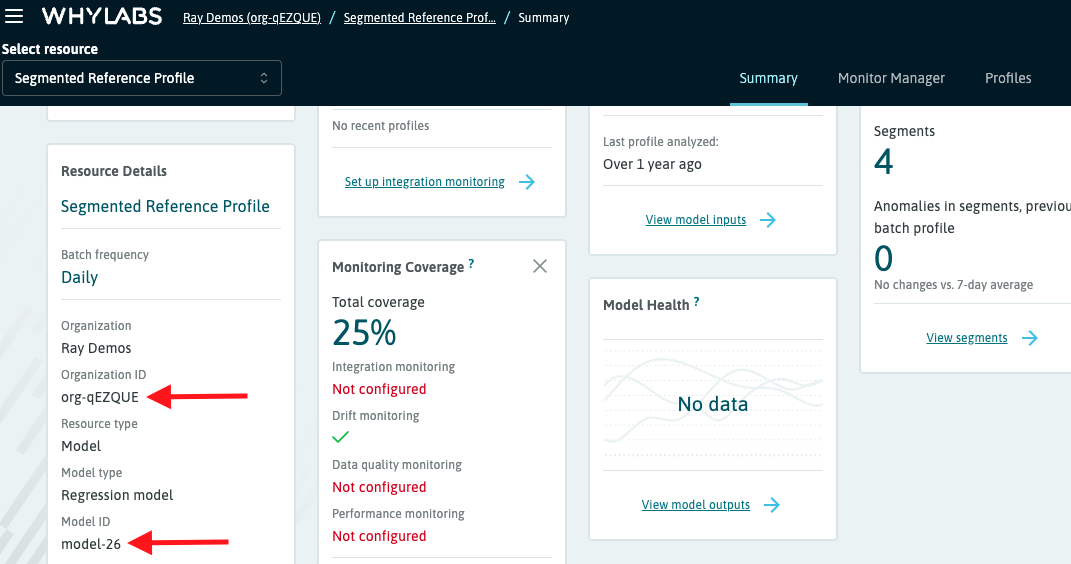
- WhyLabs organization ID as seen on the Summary Dashboard (see below screenshot),
- Model/dataset ID as seen on the Summary Dashboard (see below screenshot)
Data exports for paid customers
If you are an enterprise or subscription user and would like to export your data, please reach out to us at [email protected] for support.
Data export guide for self-serve users
There are 3 APIs that can be used to export data from the WhyLabs platform, specifically:
- MetricTimeseriesData API - for pulling batch profiles from the specified period.
- Queries are limited to at most 90 days.
- Each request is scoped to a single column+metric pair. To iterate over your data columns, you can pull the full schema of your model via the GetEntitySchema API.
- Valid metric names are:
min, median, max, quantile_5, quantile_25, quantile_75, quantile_90, quantile_95, quantile_99, unique_est, unique_upper, unique_lower, unique_upper_ratio, unique_lower_ratio, count, count_bool, count_integral, count_string, count_fractional, count_null, variance, mean, std_dev, count_null_ratio, unique_est_ratio, count_bool_ratio, count_integral_ratio, count_fractional_ratio, count_string_ratio, classification_accuracy, classification_recall, classification_fpr, classification_precision, classification_f1, classification_auc, regression_mse, regression_mae, regression_rmse, prediction_count.
- AnalysisResultsData API - for exporting the analysis results (including anomalies) generated by the monitors based on the profiles.
- The request is scoped to a single monitor and requires this monitor’s analyzer ID, which can be found in the monitor configuration as explained in this documentation section.
- GetReferenceProfile API - returns URLs enabling downloading the reference profiles.
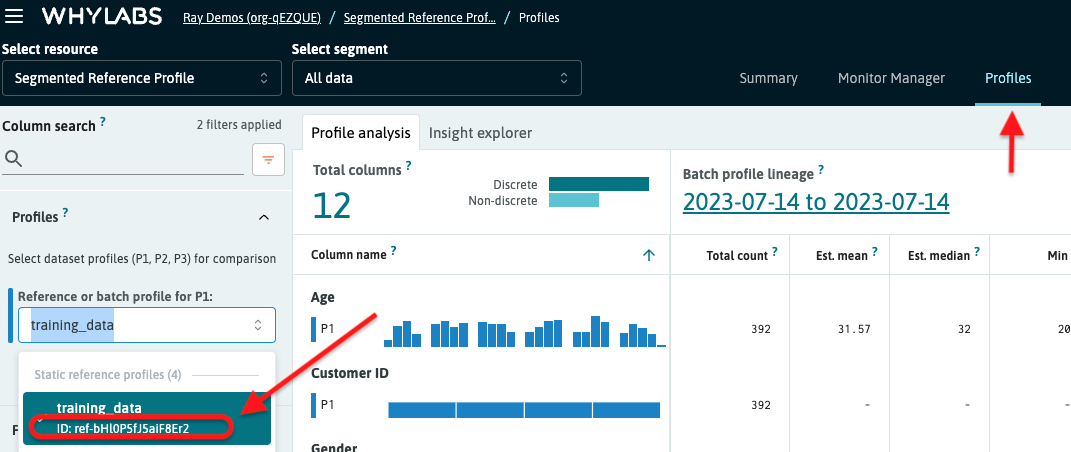
- The required reference profile ID can be found on the Profiles page as shown in the screenshot below.
- The URLs expire after 15 mins.
- In case of segmented reference profiles the output contains one URL per segment.
The above APIs can be invoked in various ways, for instance:
- directly from our Swagger API page,
- from your command line using curl,
- via the Python API client as shown in the example notebook here or in our documentation here.